Matrix
-
Compatibility After Effects Please check exact version compatibility under the "COMPATIBILITY" tab below
 Adding to cart...
Getting StartedThe script is designed to be used as a dockable panel, for a quick tutorial on installation watch thisYou need to begin with a comp with a single layer. This will be the layer that will be chopped up. The options for the effect are as follows:
|
|||||||||||||||||
What Happens When I Hit Build MatrixThe script precomposes your master layer (unless it already is a precomp). Then the script makes as many solids as it needs to cover your comp from top left to bottom right. It duplicates your master layer for each of these solids, parents and track mattes to the solid and animates the solid based on your settings. All the master layer duplicates are made shy. The master layer is duplicated one final time and placed at the top of the timeline with the eyeball turned off. This layer is not made shy and is there to make it easier to access the preconp that housed your original layer.There are two layers at the very bottom of the comp that are shy and locked. These layers should not be touched, they are used by the script if you want to change any parameters. |
|||||||||||||||||
Editing A MatrixIf you Have built a matrix and want to change any of the parameters, click the edit button while you are in that composition. A window will popup with all the parameters that were used in that matrix build. You will not be able to do anything else in After Effects until the popup window is closed. If you hit cancel, the popup will close and nothing will happen. If you hit Rebuild Matrix, the matrix will be rebuilt using the parameters set in the popup. |

| After Effects | CS6, CS5.5, CS5, CS4, CS3 |
|---|
- v1.21 - March 2013
- Fixed ability to edit matrix in cs6 and some other bugs
- v1.0 -Aug 2010
- Initial release
-

- Compatibility After Effects
Automated Video Editing for After Effects
Add to CartAutomated Video Editing automates the whole video editing process synced to music in After Effects.
-

- Compatibility After Effects
3D Layer Distributor
Distributes layers in 3D space within set ranges (you can set the ranges by editing the user variables at the top the script).Add to Cart -

- Compatibility After Effects
Helium + HeliumX Lite Free
Add to CartHeliumX Lite. FREE 3D plugin. It includes some of the basic tools of the HeliumX 3D toolset - 3D Models, 3D Animated Text , Extruded Shapes, Primitives and Scroll.
HeliumX AI. A new free AI image generation plugin, part of the HeliumX plugin toolset for Adobe After Effects.
HeliumX is a groundbreaking new 3D toolset for Adobe After Effects. Quickly and easily create slick and sophisticated 3D animation.
To download HeliumX Lite for free click on the TRY button above.
Please note HeliumX is a yearly recurring subscription, see terms here.
-

- Compatibility After Effects
ft-UVPass Bundle
Add to CartWith this bundle you will be able to re-texture your 3D objects and create 3D masks directly in After Effects by using AOVs such as UV pass (or ST map) and Position Map (or PPass).
-

- Compatibility After Effects
AEMap
A dockable scripts panel that builds maps for you directly in AE.Add to Cart
Use the build in boundaries and jurisdictions or import your own. Colorize the shapes or masks based on data. Precompose by jurisdiction. Use different projection types like mercator, equirectangular, aitoff and more. It comes with the "AEMap Utilities" which contains tools for dealing with a bunch of layers and nested comps. -
- Compatibility After Effects
AudioAmpToVideoSpeed
Allows you to speed up or slow down a video according to an Audio Amplitude layer.Add to Cart
-

- Compatibility After Effects
SpellCheck
Goes through the currently selected composition, and any precomp contained within and checks every text layer for proper spelling.Add to Cart$9.99 -
- Compatibility After Effects
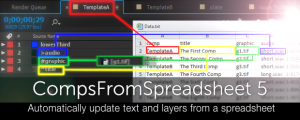
CompsFromSpreadsheet 5
Create versions of your After Effects comps using a spreadsheetAdd to Cart$49.99 -

- Compatibility After Effects
Trajectory
Align all layers in a composition evenly on a line between 2 nulls with delay controls for animation.Add to Cart$9.99