3D Extruder


Version: 1.02 Sign up to be notified by email when a new version is posted
Demo Video:
Familiarity:
To build 3D extrudes using a standard After Effects precomposition structure, making it familiar and intuitive for After Effects users to go into and customize.
Speed:
Traditionally, extrudes created by stacking 2.5D layers have been rather cumbersome to work with. 3D Extruder deals with this by having a built in “edit mode” which temporarily simplifies the structure at the flick of a switch. Used in combination with draft 3D it means that you can often scrub back and forth on the time-line in real-time or near real-time, leaving you free to worry about getting that animation just perfect.
Quality:
3D Extruder makes a highly convincing 3D extrude, emulating specular highlights, shading and reflection that respond dynamically to a controller light and reflector. Move or rotate your extrude and the shading and reflection change appropriately. Similarly, moving the light or reflector will cause the shading, specular highlights and reflection to respond too.
Ease:
3D Extruder has 10 presets that create great results at the click of a switch. With a bit of extra customization, you can create results that it’s hard to believe came out of After Effects.
Usability:
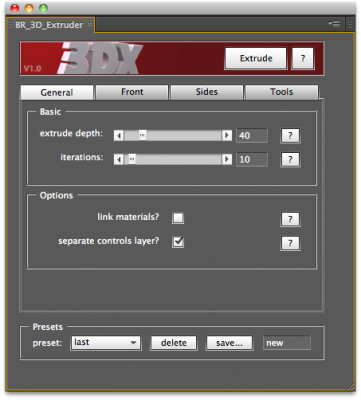
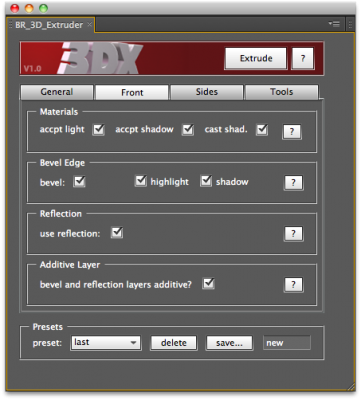
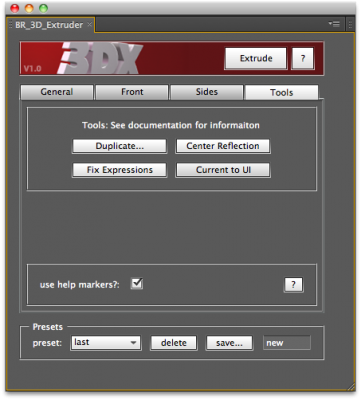
3D Extruder is not just for creating one 3D extrude. It also contains tools to make your life easier while working on projects. You can save and manage your own presets using the pop up preset box and the Current to UI tool. “Duplicate” allows you to make new versions of your extruder and even copy extrusions to other comps. “Center Reflection” will save you lots of time lining up camera, reflector and extrude and “Fix Expressions” is there to put things right if something goes awry in the engine room.
All told, 3D Extruder makes 3D extrusion quick to set up and easy to work with, while adding a level of detail that takes 3D extrusion to a whole new level.

Samples:
Video Tutorials:
Version History:
- 1.02 – Fixed intermittent reflector orientation bug (Jul/2011)
- 1.01 – Minor prefs file bug fix (Jul/2011)
- 1.0 – Initial release (Jun/2011)
The definitive collection of scripts and plugins for Adobe After Effects


la
la
la
la
la
la
la
la
la
la
la
la
la
la


Love the script, but having a problem with vectors in bring in. The script has no problem with the type but every time I use it on shapes I made in illustrator, they have super fuzzy edges. I played with anti aliasing but to no avail.
http://d.pr/i/DWzM
thanks for the help!
Hi Max
Check out this Quick Tip. I think it’ll help.
Ben.
Actually, what I meant was check out *this* Quick Tip, instead of the invisible one I linked above.
http://vimeo.com/30325467
Ben.
3D extruder.
And I used another script that you guys have where you can create a box shape. mmmmm forgot the name of it. Thanks guys. Keep being creative.
https://vimeo.com/40765109
Nice! Thx for the link.
Ben.
3d extruder example.
Time: 15min
Used AE cs5
imac
VC: optical flares
Da fonts.com
AE box script
fun stuff thank for the scripts! I love spending $= supporting creative goodness.
Glad you like it, Daniel! Did you mean to post a link though?
-Ben.
Is there an easy way to remove the effect and bring my layer back to its original form?
Great script! There is so much to it, and so fun to explore. The only thing is, (and I know I’m probably looking right at it) that I can’t find the HTML User Guide you keep referring to. Can you point me to it? Thanks.
r
Hi!
Great script and super demo!
It would be great to know how you did those super cool text animations in the demo.
I have an imac with 16gigs of ram. My model is about 2009 and the max amount of ram you can put in is 16gigs. Jeremy if you go to ramjets site you can get more ram for your computer. t=$=-:(
best of luck.
Ben, Trying to render out a 8sec clip… est time is 492hrs… Now i know I gotta have something setup wrong because it’s taken long before but not THAT long. 3.06 iMac with 8gig ram, any ideas!??
Hi Jeremy…
No that’s crazy! Sounds like you’re running out of RAM or something. Are you using CS4?
Feel free to email me the project over if you like (no need to include assets… just zip up the project and send).
Ben.
No using, CS5, Sent you the a response email, thanks!
Hi Jeremy,
I took a look at the file. This is a combination of four problems.
First of all, a classic After Effects problem – you are using a graphic that is unnecessarily big. At 4000×4000 pixels, it’s much bigger than it ever appears on screen. Very big graphics buffers have always tended to bring After Effects to a grinding halt, especially if you have a computer that isn’t stacked with RAM.
Combined with this, you are probably using too many extrusion layers. I find usually that between 10 and 40 does the trick. You have 100. This will only ever bring any advantage if you look at the extrude directly from the side. What you could do is trim 60 of the layers in the main extrude comp so that they are only on at all if and when the extrude is looked at directly from the side. (or you could do what I do… make sure you never get within 1 degree of looking directly from the side… it’s relatively easy to do).
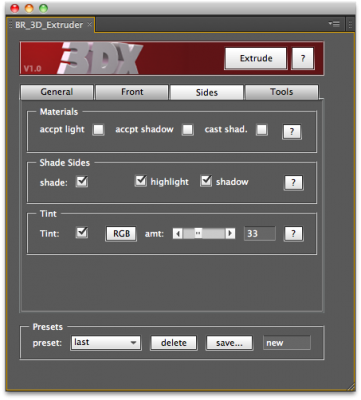
In your extrude, you have also chosen to have every side layer as a shadow casting and accepting AE 3D layer. There is a reason that this is off by default in 3DX. Side shading is much better controlled by 3DX than AE’s native lighting / shadowing. Unless you’ve got an excellent reason not to always leave the three Materials boxes in the Sides panel unchecked.
The final piece in the puzzle is that you’re using an iMac with not all that much RAM. OK, it’s not a tiny amount of RAM either, but if you’re going to stack 100 4000×4000 images on top of one another, all casting shadows on one another, then you’re going to need some crazy memory management. You probably could render this on your machine, but you’d need to do some testing with your rendering settings. I would be inclined to turn multi-processing off. Each render instance needs all the available RAM it can get. Turn Disk Cache on and give it plenty of RAM (preferably on a fast HD). If you’re using native motion blur, then turn it off and put a CC Force Motion Blur effect on the whole thing. This is the standard way of doing things for 3D Extruder anyway, but in very heavy render situations, it also seems to help with the memory management, I find.
Hope that helps.
Ben.
Oh… and by the way… for heavy renders, render as an image sequence and convert to a Quicktime / FLV / AVI once it’s cooked.
Took me about 20 min. Enjoi skate co. 3d extruder example http://vimeo.com/34651931
Good stuff, Daniel! Thanks for the link.
Happy holidays Ben !
For the occasion, I would like to send you the best wishes through this special animation :
http://vimeo.com/33872039
Once again the 3D extruder was a precious time saver, and a key tool to design the sledge and presents. So thanks again and a great holiday to you !
Paul.
Love it! A belated happy holidays too.
Ben.
Hey Ben,
Love the script, but just recently I came across a bit of a problem. I am getting these ugly black dots and lines from the text halfway through my render. I know it’s something in the text because I turned off the layer and it disappeared. Do you know what is causing this? Hope to hear back soon, deadline is coming up quick!
I have a picture of it in this forum: http://videocopilot.net/forum/viewtopic.php?f=13&t=72164
-John
Hi John,
It looks like the thread at Videocopilot was removed, so I can’t see what you’re talking about.
3D Extruder creates only standard After Effects composition structures, so by looking through the composition structure you should be able to find the problem. It’s always possible that it’s a render glitch in AE, but without seeing the image, it’s hard to say.
Feel free to post another link to the screencap.
Ben.
I’m not sure which link is going to work so here’s 2: http://tinypic.com/r/21qu5g/5 http://i44.tinypic.com/21qu5g.jpg.
There definitely are a lot of layers going on, so I tried toggling every other Text PreComp layer off in Z space but unfortunately it didn’t fix.
-John
It’s a bit hard to tell from that small image, but it looks to me as though you have added a layer to either the front composition, the side composition or the main 3DX composition. Have you added any adustment layers maybe?
It’s certainly not a standard 3DX layer. Have you worked into the composition structure after running the script, or did it look like that the moment you ran it? Are you rendering with Open GL? Do you see this in the preview window too or just when you render? If it’s just when you render, what’s the difference between your preview settings and your render settings?
If you want you can send me a copy of the project. Please make sure it’s strimmed of all assets…i.e. just the aep zipped and with a quick indication of the problem composition and frames.
thanks brother i like it
Hi Ben! Love the script so much, I use it constantly for my job!
One thing I was wondering, and apologies if you covered this in the tutorial already, but is it possible to have a different back layer? Basically I want to create a cell phone and have a proper back for it as opposed to just repeating the front. Thanks so much!
– Adam
Hi Ben,
I was trying to map a wooden texture on an extruded text,
which works best for the front part.
But I don´t get good results fpr the sides.
I´m very clear about 3D Extruder works with iterations but is there any
workaround to get nice texture maps om the sides?
Thanks geggo!
Hi Geggo,
At the moment, side texturing is fairly basic. I’m going to be making something more adaptable for a future release. If you’re using a noise based texture, you could try applying it to the individual side layers and offsetting the evolution according to the layers index. You need to be confident enough to delve around in 3DXs innards a bit to do that. Otherwise you’ll need to wait until I’ve built it in to the main script.
Ben.
Hi Ben,
thanks for your help.
Anyway a great script with many uses!
geggo
cool… will be taking that route next time.
Thanks!
-Derick
Had to turn off the 3DX layers’ motion blur
The best bet with 3D Extruder is to either turn motion blur off for slower movements or to use the CC Force Motion Blur effect on the whole composition.
-Ben.
Loving this super clever thought out script! but having an issue when rendering it out. It previews fine- but when I render – it suddenly has shadows etc where there wasn’t any during full res RAM previews.
Any thoughts or tips?
Thanks,
Hi Lodestar,
Thanks… glad you like it.
I’d guess that during the RAM preview, you had draft 3D turned on, which won’t have been on during the render.
-Ben.
Is there a non-profit discount for this script?
Thank you Ben for this fantastic script! You’ve made our life easier!
You are the best!
Hey, great script!
where do the settings get saved physically? i am working on multiple computers and would like to copy settings from one to the other but cant seem to find where they live once i save them.
thanks!
Hi Bobby,
It depends what kind of computer you’re on, where the actual prefs get saved, but if you have a look in the html user guide, you can find details in there where you can find the actual prefs file.
Ben.
hmmm i read through that and see the section that talks about saving presets… but i am not seeing where it says it is actually saving them. Im on mac osx 10.6.8 ae 10.0.2.4
If you open up the html user guide and click Installation on the LHS, it’s there in the first paragraph. For your OS and version of AE, it will be…
Computer Name/Hard Drive Name/Users/User Name/Library/Application Support/Adobe/Adobe After Effects CS5/3DX_Preferences.txt
Replace Computer Name, Hard Drive Name and User Name with your relevant details.
That’s the prefs file.
-Ben.
For those of you asking questions about blurring and pixellation, here’s a two minute quick tip on how to avoid the problem.
http://vimeo.com/30325467
Ben.
Heya !
I purchased this plugin but did not get a mail with the license code, so its now not allowing me to use this product.
Im not sure what details you need, but ill gladly give em for the key.
Hi Kyle,
Check your junk-mail of the account you used to register. It’ll probably be there. If not, then get in touch with support@aescripts.com
B.
I’m finding that if you pre-comp the text at the size you want and then extrude it, it works great.
thanks for all your help.
J
problem solved….I just needed to adjust the size of the text and the screen size. why would it be giving me a really small text size??
thanks again.
J
Because you started with really small text close up to the screen. Continuously rasterize will keep that looking sharp, but if you 3D Extrude it, continually rasterize doesn’t work. Therefore you need to start with bigger text.
I’ll do a little tutorial on this when I get a moment.
Hi Jay…
Here’s the tut. http://vimeo.com/30325467
Ben.
Hey Ben
here is what the image is looking like
http://dropzone.lucidia.com/files/Screen_shot_2011-09-30_at_3.05.39_PM.png
Yes… that’s exactly the issue I’m talking about. Can you tell me what the dimensions of your 3DX base comp are? The one with your original text in. It’s these dimensions that are too small, as well as the other 3DX precomps. You can go in and change these manually, or you might prefer to start again with a bigger piece of text. For instance if you ran 3D Extruder on a piece of text that was 32 point, then run it on text that is 100 point and see what happens then.
It will resolve the pixellation issue that you are seeing.
Ben.
Thanks Ben….
but no matter what size the text is, it is a terrible quallity. Not sure what this is or what to do.
But thanks for the response.
J
this seems weird to me…..i installed everything correctly, but when I go to extrude the text, it turns out really pixelly and terrible quality. Nothing sharp at all.
Is there anything that I’m doing wrong. help!
J
Hi Jay,
If you extruded a small piece of text and then bring it right up to camera, it will appear pixellated. 3D Extruder isn’t able to continuously rasterize all the way down the structure. It’s essentially a lack of resolution.
Either go and make all the 3DX precomps bigger, then scale up the contents of your base comp and scale down the 3DX layer in your main comp.
Or easier… just start by extruding a bigger layer.
I’m going to work an easy up-rez fix into the next version, but time is a rare commodity for me at the moment.
Ben.
PLEASE HELP!!!
Does anyone know how I can create the effect of objects starting out falling slow then fast? like this effect in this video demo. It
I think maybe learning to use the graph editor might be exactly what you need. Once you’ve got the hang of it, it’s pretty much the most powerful tool there is for making things move nicely. In some respects, it’s the core of After Effects.
For instance, the effect you’re talking about…. right click and separate the position dimensions, then animate the y position with just 2 key frames. The first one in the original position on screen and the second one off the bottom. Then go into the speed graph (not value) for position and make sure you have a line, that rises in a straight line from 0 up to some arbitrary value (or as straight as you can get it). A linearly rising line indicates a constant acceleration, such as you have under gravity.
Once you’ve done that, come out fo graph mode, select both key frames, hold down alt (option) and move the last key frame left and right. This will concertina them together, effecting the overall speed of the animation whil keeping the accelation that you just made, so you can adjust the speed independently of the movement.
This will give you the effect of something falling under gravity.
A script that might help is ease and wizz.
Ben.
Thanks for the info Ben. Yeah I posted this question on Ian’s page also, and he told me to use the ease and wizz and use the expo in….and WOW it worked perfectly. I had already been working with ease and wizz for a few weeks now, but never knew it was that powerful and easy=) Thanks
Another effects I am trying to learn is how to make letters sway back and forth. Any ideas? any scripts on her for text effects?
~L
Have a look in Animation->Browse Presets… in After Effects itself. There’s plenty of text presets there. Maybe you could adapt one of those.
Kewl. I will do that. Thanks Ben=)
Just bought 3D Extruder, I’m going to be up all night, having some fun with it. Its an awesome script. Thank you!
Wow!!! This is very great…
i can’t believe that you can do all of those 3d text in Ae…
i think i will buy this script
Hi Chris,
Thanks! Believe it. It is all in AE!
Thanks Ben. I have had that book from the great Preston Blair since 2007. I will have to dig it out from the depths soon=)
Yeah.. it’s a classic. I had it when I was a kid. I think it’s what got me into animation.
Ben,
Is there a quality limitation on the free trial? I am trying to extrude a simple text layer, and it previews as if it is displaying in half resolution. I’ve double checked 3d settings, used different fonts, etc. but the result is always the same. I’m looking forward to purchasing the script, but can’t seem to get it off the ground.
Any help would be awesome!
David
No.. the demo is the full version. What you’re probably doing is extruding a relatively small layer and then bringing it close up to camera. The maximum resolution that 3D Extruder displays at is dictated by the size of the original layer (unfortunately it’s not possible to get collapse transformations working all the way down the 3DX structure).
The solution is to make the layer bigger before you extrude it. How big should be based on how close up to camera you want to bring it. You can also adjust the dimensions of the 3DX precomps after you’ve created an extrude, if you decide after the event that you need more resolution.
Ben.
Hi David,
Here’s a short video tut on this very issue…
http://vimeo.com/30325467
I am very impressed with the demo. I just purchased it, but am very confused on what in the world do I do to animate like you did in the demo. Your tutorial is basically about design and not about animating and making those cool spin around effects like you did. I would have thought you would have made a complete tutorial before selling this. I am lost and don’t even know where to start. Is this just for people who are advanced at 3D in after effects, or is this script for the 3D beginners like me? I just hope I did not waste my $29. PLEASE HELP. I have a project that is due for a client on Monday, and it is Friday now and I wanted to use these effect over the weekend=(
Hi theanimator,
3D Extruder is for everyone, beginners and advanced, but it is a script that creates 3D extrudes, not one that can design, light or animate for you. In terms of animating, it works just like animating any other After Effects 3D layer. The edit modes allow you to adjust and preview your keyframed animation quickly and easily.
If you want some scripting help with animation, you could look at the Ease and Wizz script here from Ian Haigh, but in actual fact all the animation in the demo was created in the time-honored fashion of manually applying keyframes and judging the movement by eye.
Tutorials that cover design, animation or lighting would have a huge scope and wouldn’t be that specific to After Effects. The 3DX video tutorials are already a pretty hefty 30 minutes and cover the basics of creating 3D extrudes.
Ben.
Hi Ben,
Thanks for your reply. Actually I am studying the Ease and Wizz script now, but I am trying to find out how you got those 3D spins like in your demo at 0:10 and 0:11. Is there any tutorials you can lead me to that would teach me how to do that? I create video demos for companies, and for me to do what you do in your demo would help me so much. I really need to learn this asap. Thanks
~The Animator
Hi the Animator,
I’m afraid I don’t have an easy answer. I’ve been working with movement for the best part of 20 years. It’s not really to do with keyframes or anything technical, but about studying how things move and imitating them on a timeline. The weight and resistance I always judge by eye. It still takes me quite a bit of trial and error to get movement feeling exactly how I want it to.
One tip I could give you is to set up a system of parented nulls, giving yourself various axes to rotate the text around. Think about what is driving the object to rotate and what the resistances are that hold it in place. That’s the key to making things move as though they have weight… and I think that’s what you’re trying to achieve.
Ben.
Hi the Animator,
Although this is about classic cel animation (and largely about characters), you might find some very useful tips about animation in general here… http://www.freetoon.com/prestonblair/chapters.php?chapter=3
Ben.
I’m having an issue getting it to recognize the “continuously rasterize” option. For some reason the shape layer (or vector layer from Illustrator) looks fine pre-extrude, but once extruded there is no sharp edge anymore…
Hi Kevin,
Unfortunately, 3D Extruder can’t recognize “continually rasterize” all the way down its structure. The best trick here is to make the initial shape bigger. Judge the size depending on how close up to camera you want to bring it – remember that bigger will have some processing overhead. But this technique will give you enough resolution for the edge to remain sharp looking.
Here’s a video tut on this issue.
http://vimeo.com/30325467
Great script. saves a lot of trouble. I actually stopped making extruded text, but im back thanks to this.
would love to see some tutorials on how to use animation text preset and this script (like seen in the demo).
If I buy a site license will I be able to install this at home and on the job?
I was also informed of using the Vegas effect instead of the Venetian Blinds effect. Depending on how detailed you want to be, either way can word. the Vegas effect, if the settings are right, insures that you don’t have to make any masks plus it makes the dots evenly distributed (much more control and fine tuning involved). Here are my settings, use them as a bases when creating this effect:
http://bit.ly/qPVMVq
and what the effect looks like:
http://bit.ly/r9vEtJ
-Lyndon
Okay it’s gonna be a little long winded but you asked for it (plus it might help others). If there is an easier way then I’m sorry; I tried
Create a nice big font title, disable fill in the character panel and add a thick stroke (I went with 3).
In the 3DXtruder panel use the preset “toon_simple”, go to sides, with tint on turn it’s percentage down to 0%.
On the general tab set the extrude depth to like 80 and put the iterations up to around 80 or higher since you’re gonna want to pan around the font more to display the 3D grid effect.
Hit extrude and make a new camera if you don’t already have one. Go to the “(3DX) Side” comp inside your precomps folder (inside your “(3DX)” folder) and then in the timeline, after it opens, create a new “black” layer. Make sure taht layer is comp size.
Now I did a quick fix but it’ll get you in the right direction if you wanna swift a little, after the fact. With the new layer selected go to Effect/Transition/Venetian Blinds.
Turn the transition complition to around 20% and rotation to 90 degrees, make it 98 and I’ll shake my head :/
Now play with the “width” setting till where you feel your little squares are gonna rest well (remember, those squares are gonna shoot back in Z space to make that 3D effect your after).
Select the “(3DX) base” layer and change it’s track matte to “alpha inverted matte” (it’s important that you do this).
Now you’ve gotta clean up a little, all those extra lines are gonna need to disappear. with the “(3DX) Base” layer still highlighted, select the rectangular mask tool and mask over one of the lines.
Now in the timeline change the mask to “subtract” instead of add. Now you can adjust the mask making the line turn into two little squares that look like all the other squares in the comp.
repeat till your logo is clean:
http://bit.ly/nShI3E
Go into your main comp and you’ll see that everything is coming together except you’re missing the back layer. I’m having a brainfart so go into the “(3DX) base” layer, copy your text layer and paste back in the main comp.
Make the layer 3D, select the actual 3D layer we’ve been working on, hit “P” to reveal it’s position property. Select position and press ctrl+c. now select the text layer you just pasted and press ctrl+v and you’re good to go.
You’re all set. Now play around with the BG, blur/vignette, glow, transperancy, grain, etc. (my version is a little rushed but you see the idea):
http://bit.ly/rltqk0
I hope that helps buddy,
-Lyndon
Hi there,
could you post a brief explanation on how you made the wireframe example?
i have been trying at it with no success…
thank you!
Hi, I log in to buy the plugin but the country where im is not listed (Gambia, located in West Africa). And Im facing error message “15005 Processor Decline This transaction cannot be processed. Error” I using VISA
Please Help.
I bought this plugin and was working fine until tonight and when I would open it, it gave me an error “unable to execute script at line 6355. undefined is not an object” any hints how to fix this?
Hi Jared,
I don’t actually have the script in front of me at the moment, but I’m pretty certain that this is a little error in the reading of the preferences file that I fixed in version 1.01. Update to the latest version (1.02) and I think that will fix the problem. If not drop me a line. ben (at) benrollason (dot) com
Best,
Ben.
You can upgrade to the latest version by downloading the “Free Trial” above. Your license will be automatically detected and the trial will be unlocked.
Have used this plug in on various systems and always causes After Effects to run terribly when it is open. This has nothing to do with long render times, but instead it causes bugs and other strange effects that cause after effects to load for 30 seconds when trying to do simple things like open the File drop down menu.
Hi Andrew,
3D Extruder is not a plug-in, it’s a script. It doesn’t do anything or create anything which is not entirely After Effects native code.
If you’re finding that AE runs slowly in conjunction with 3DX, it’d be great to know if this is before or after you have created an extrude. Also what platform, AE version and hardware configuration you’re using would be really useful info. You can email it to me… That’s probably the easiest.
If you’ve found an actual bug, then please email me a screenshot of the error message / strange effect that you’re seeing. Ideally a description of what you did to create the bug too.
If you create an enormous extrude at HD, in CS4 on a relatively slow machine, you might well find that AE starts to run slowly. You can use the Edit Mode checkbox in conjunction with draft 3D and Quarter or Half resolution to make it run quickly while you work on it. Check out the user guide for more details.
Regards,
Ben.
Hi.
I’m use AE CS5.5 & PC(Windows 7) , When run 3D Extruder(trial) show this error:
Allow scripts to write files and access network
Hi John,
In your After Effects preferences, you need to make sure that the “Allow Scripts to Write Files and Access Network” box is checked, under the General tab.
Ben.
Trying out the demo (on AE CS4) and can’t seem to get it to work. I was able to put it in the ScriptUI folder and get the UI window up.
When I hit the extrude button on my text layer, it only creates a null object and the “My Layer (3DX)” pre-comp that only has my text layer in it. No “3DX Light” “3DX Reflector” or “3DX Controller.” Any ideas?
- Mike
Hi Mike,
Sounds mysterious. If the reflector, controller and so on are missing, it could just be the way you have the settings set, but if the My Layer (3DX) precomp only contains one layer then the script has hit a snag of some sort. If that’s the case, then it’s quite a surprise, because it’s pretty core functionality. To fix it, I’d need to find out what’s different in your set-up to everyone else’s.
If you go to the preferences window and under general switch on “Allow scripts to write files and access network” and “Enable Javascript Debugger”. That way, if there is an error then it should tell you what and where.
Are you on a Mac or PC? And is it a full version of After Effects or the demo version?
You can email me direct if you like.
Best,
Ben.
Very interesting. I went to check my settings and all (on a Mac using a legit copy of CS4, btw) and enable javascript debugging when I figured… Maybe it’s the font? So I tried it with an Arial text layer and it worked like a charm. Then I tried it on the original layer (font: Abadi MT Condensed) again, and it worked as advertised. I appreciate the quick response, though! Can’t wait to start playing with this and buy it.
- Mike
Glad it’s working now.
Ben.
it’s look amazing it is lake cinema 4d
how it’s setup please show me how
Hi horsdad,
Take a look at the user guide links and download the demo. It’s all there to see.
Because the bevel, shading and reflection all react dynamically to the position of a light and reflector, it’s largely controlled by expressions. But the structure is such that you can build into the After Effects precomps in a relatively intuitive manner to customize it.
Best,
Ben.
wonderful script. i’m contemplating buying. running demo render now. (wht are limits on demo?)
quik question:
is it possible to layer other effects on top of the extruded text (i.e. pre-compose the layers)?
Hi David,
Thanks. The demo is unlimited, but after a while it will stop working.
The main extrude layer is itself a precomposition and one with collapsed transformations. That means that while you can put effects directly on to this layer, doing so will break the continuity of After Effects 3D space exactly as if you had put a 2D layer between 3D layers.
If you’re sure what the 3D order is going to be from the camera’s point of view, then this is no problem. I often do this for instance to put a light glow behind the text. I make a second version of the layer (just the normal AE duplicate in this instance as the contents of the extrude won’t change) add a tint and a blur and place it directly behind the main 3D Extrude layer.
Best,
Ben.
Hey I’ve got a question. What would be the best way to go about setting up a floor reflection? Any help would be much appreciated. Thanks in advance
Hi Lyndon,
There’s various methods. You can duplicate and flip the extrude and use a 2D layer to force it to render in front of the floor or you can make the floor translucent. A more robust but more complex method is to reflect the camera in the floor in a duplicate composition. This however needs to be matted through the floor, hooked together with some fairly complex expressionary.
There’s loads of tuts about on reflections so have a Google.
I’m also going to release a script soon that I use to make solid reflections. I just need to tidy it up a bit first!
Ben
Cool man, thanks. I’ll have a stab at it. Just starting to crawl w/ expressions but waiting for your script doesn’t seem bad either. Thanks again, I’m glad I purchased it
Had good fun with it in the last week: http://youtu.be/RQBuTxKLKKY
Man, thank you for the outstanding job, this script is amazingly helpful.
Of course the render time goes over the moon if used extensively, but I gotta say that I will probably use it more and more often in the future.
Had just some small issues with the expressions which I couldn’t fix within the tools tab.
And also stack the layers in 3D space sometimes worked correctly sometimes not, but I still need to have a better look at it.
Again, thanks for the great work.
Hi Infographic,
The vid looks great. Thanks for the feedback.
If you’ve had an issue with the layers stacking oddly, it might well be because you’ve put effects on a collapsed layer (like the main 3D Extrude layer). That always breaks the stacking order in AE.
But with this and the expressions issue you mentioned, I’d love to hear details, see a screen shot or even an ae project file if possible. That way, if it is a bug then I can fix it for the next release. If you’ve got the time, then drop a line to support.
Also, when I get a moment, I’ll put together a tut about keeping the render time down soon too! But yes, if you’ve got HD, several extrudes, lighting with shadows, motion blur, the works…. there’ll be some processing going on!
Thanks again for the feedback, man.
-Ben.
Happy to help, if I’ll get any odd behavior I’ll keep in touch.
I’m Looking forward to watch more in depth tuts; a breakdown of the presentation video would be just quality.
Thank you Ben.
http://forums.creativecow.net/thread/15/861965
Is it possible to bend the extruded text like in the link?
Hi Brandon,
No, unfortunately not.
-Ben.
hey buddy… thanks a lot… thats so cool and very easy to customize…. But i do have a question… I have a 3d scene which i imported in AE. I now wanna convert that to a 2d image…. what should i do for that? is there any scripts or plugins available over here?
Thanks once again.
Regards
Arun
Hi Arun,
It depends on the scene and exactly what you want to do with it.
If you built it with 3D Extruder, and you don’t want to see the extrusion, then just turn Edit Mode on (making sure that Edit Mode 2 is off) and you’ll be back to the usual 2.5D layers.
If you’re talking about stacked extrusions created in other ways, you could turn all stack layers off, bar one.
Otherwise, I guess just turn the 3D switch off!
I don’t think there’s a script for that though.
-Ben.
Awesomeness. You’ve done it again Ben.
Nice
and great demo video!
Looking forward to play around with that script
Great script. I was wondering if the extruder would work on non-text based elements? Thank you very much.
Hi Tia…
Yes. It works on everything.
Ben.
Thank you
Hi Ben,
First: great script!!!
Is it supposed to work on vector graphics too? I’m having some problems with Illustrator graphics and continuous rasterize in AE, it gets really blurry – any tips to make it look right?
Hi Frank,
Here’s a video quick tip about extruding continuously rasterized layers and dealing with blurred or pixellated extrudes.
Ben.
Oops… forgot the link…
http://vimeo.com/30325467
Hey! Great script. I just downloaded it and I’m already making cool stuff! Is there any way you could make the project files for your promo video available for us to see how it’s done?.. Or even better… a tutorial (but project files would be more than great!) I just can’t seem to get the great looks you have on the promo.
Thanks Matt. I’m going to be producing some tutorials about cool ways to customize 3D Extruder soon.
THANK YOU THANK YOU THANK YOU !!!!!
Amazing!!! Until Adobe adds a real 3D space in AFX (hopefully in CS 6
) this is a must have for extruding. Your scripts really help improving our AFX work
I do not know what to say
You are making our life easy here, we used to this manually and it takes time, now it more easy and more pro. Im So excited to try it
Thanks