
ExpressionUniversalizer 4
-
Compatibility After Effects Please check exact version compatibility under the "COMPATIBILITY" tab below
 Adding to cart...
New Features
- ExpressionUniversalizer 4 has an all-new c++ based expressions parsing engine. This means it is about 10-20% faster and more accurate.
- Support for all After Effects native languages**: English, Spanish, French, German, Italian, Japanese, Korean, Portuguese, Russian and Chinese
- Support for Data layer references (JSON, CSV, etc)
Make your projects compatible with After Effects running in any language
Automatically converts the expressions in your projects so that they are compatible with After Effects running in any language. If you are an After Effects template author or create projects for international clients you've certainly run into the situation where your expressions break on your client's machine. This is where ExpressionUniversalizer will come to the rescue! Just run it with one click on your projects before you post or send them and they will be guaranteed to work!
ExpressionUniversalizer 4 has the most robust and tested expression parsing engine available. This means it will successfully universalize 99.9% of all expressions. No more exceptions or special cases. Just run it on your project and that's it!
**IMPORTANT** The only consideration is that you need to run the Universalizer in the same language as the expressions are written. For example, if your expressions are written in German then you need to have After Effects running in German when you run the Universalizer. Once the project has been translated or "universalized" it will be able to be opened in any language and the person using your project or template will not need Universalizer on their machine.
Super easy to use! Just one click!
It's very easy to use, simply choose whether you want to process the current comp or all the comps in your project and click on the Universalize Expressions button. That's it. There is an option to create a log file in case you want a detailed record of what is being converted or if you run into any trouble.
There is also the option to add a "Universalized" tag in the comp comment field in the project panel. A common support issue for templates is from customers that don't run AE in the same language that the project was authored in. If you are a template author and are submitting your template to a marketplace like Adobe Stock then this allows the reviewers to quickly check and see that your expressions have been universalized and will make your template more attractive since it will require less customer support from them.
Batch project processing
You can batch process a folder of After Effects project files with advanced filtering and renaming options.
Launch ExpressionUniversalizer as a service from KBar
You can launch EU as a service from KBar using a JSON argument.
- "scan" options are:
- project
- comps
- layer
- layers
- batch
- "batch" options:
- project_match
the text that will be matched in the project name when running a batch - rename_mode
can be "suffix", "prefix" or "replace" - rename_text
the text that will be added to the project name using the "rename_mode" - "suppress" all alerts including errors
- "add_tag" will add the "Expressions Universalized" tag to the project
- "remove_disabled_expressions" during the scan
- "logfile" defines where the logfile will be saved
Here is an example argument to scan selected layers:
{"scan":"layers","suppress":true,"add_tag":true,"remove_disabled_expressions":true,"logfile":"~/Desktop/EU_log.txt"}
Here is an example argument to do a batch:
{"scan":"batch", "batch": {"project_match":"eu_","rename_mode":"suffix","rename_text":"_universalized"},"suppress":true, "add_tag":true, "remove_disabled_expressions":true, "logfile":"~/Desktop/EU_log.txt"}
Tutorial
Upgrade Notice
If you purchased ExpressionUniversalizer 3 after April 1, 2020, you can upgrade for free. If you purchased it before you can upgrade at a 50% discount. To get the discount login to the same account you purchased v3 with and you will see the discounted price automatically. Prior versions are not eligible for upgrade discounts. If you have any questions or issues please open a support request.
| After Effects | 2024, 2023, 2022, 2021, 2020, CC 2019, CC 2018, CC 2017, CC 2015.3, CC 2015 |
|---|
4.2.6 (Current version) - Sep 13, 2023
4.2.5 - Mar 9, 2023
4.2.4 - Feb 7, 2023
- Fixed issue with Essential Properties expressions
4.2.3 - Oct 5, 2022
4.2.2 - Jul 11, 2022
4.2.1 - Jul 10, 2022
4.2.0 - May 25, 2022
4.1.1 - Feb 13, 2022
**IMPORTANT** this feature only works in AE 2022 and higher. If you process a project in AE 2021 it will break. However, once you universalize a project in AE 2022 it will open in AE 2021 and below.
4.1.0 - Feb 2, 2022
- Updated lic framework that includes these fixes:
- Fixed macOS monterey crash
- Fixed macOS Dropbox issue
4.0.9 - Jun 30, 2021
- (4.0.8) Improved regex special character exception handling
4.0.7 - Apr 8, 2021
- Added exception for expressions using \s in a regex
4.0.6 - Dec 9, 2020
4.0.5 - Nov 17, 2020
4.0.4 - Sep 11, 2020
4.0.3 - Sep 7, 2020
- Fixed issue with layers referred to by index in expression
- Fixed suppress alerts issue
4.0.2 - Jun 26, 2020
4.0.1 - Jun 10, 2020
4.0.0 - Jun 5, 2020
- Support for all After Effects native languages**: English, Spanish, French, German, Italian, Japanese, Korean, Portuguese, Russian and Chinese
- Support for Data layer references (JSON, CSV, etc)
-

- Compatibility After Effects
Auto Transition Builder
Add to CartAdd different transitions to a large number of layers in a very short period of time. Automate and speed up your video editing process!
-

- Compatibility After Effects
iExpressions 3
Add to CartCreate complex expression-driven templates, character rigs, shape animations and more without writing any code!
-

- Compatibility After Effects
pt_OpenSesame
Export projects for spreadsheet editing, template versioning and server automation, create backwards compatible projects for any version back to CS3. OpenSesame truly opens up the After Effects project format.Add to Cart -

- Compatibility After Effects
Review Importer
Add to CartImport comments from video review sites directly into your After Effects timeline.
-

- Compatibility After Effects
Swiss Knife
Add to CartSwiss Knife is a group of 20 tools that can be combined in thousands of variations.
-

- Compatibility After Effects
Screen Mapper
Add to Cart. Screen Mapper is a new tool for After Effects that allows you too quickly set up multi-screen display templates for animating and exporting.
-
- Compatibility After Effects
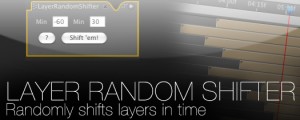
Layer Random Shifter
Randomly shifts the selected layers in time within user defined range.Add to Cart$9.99 -
- Compatibility After Effects
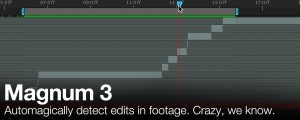
Magnum 3
Add to CartAutomagically detects edits in footage. Now with an all new detection engine that is easier to use and gives better results. What's not to love?
$39.99 -

- Compatibility After Effects
Zorro-The Layer Tagger
Zorro lets you group layers in after effects by adding tags to layers. Similar to the way you would tag photos in Flickr, you can tag layers in your comps and then select or isolate those layers in groups by using the tags.Add to Cart$29.99 -

- Compatibility After Effects
Trim to Layer
Add to CartTrims the selected layer to the layer above, below or fit between the two
$4.99 -

- Compatibility After Effects
Arrange Project Items Into Folders
Arranges project items into folders based on a matching prefix.Add to Cart$4.99 -

- Compatibility After Effects
Create Trimmed Adjustment Layer
Creates a new adjustment or null layer and trim it to the range of the selected layers.Add to Cart$4.99